
New Printer Installation: From Box to First Perfect Print (Windows & macOS)
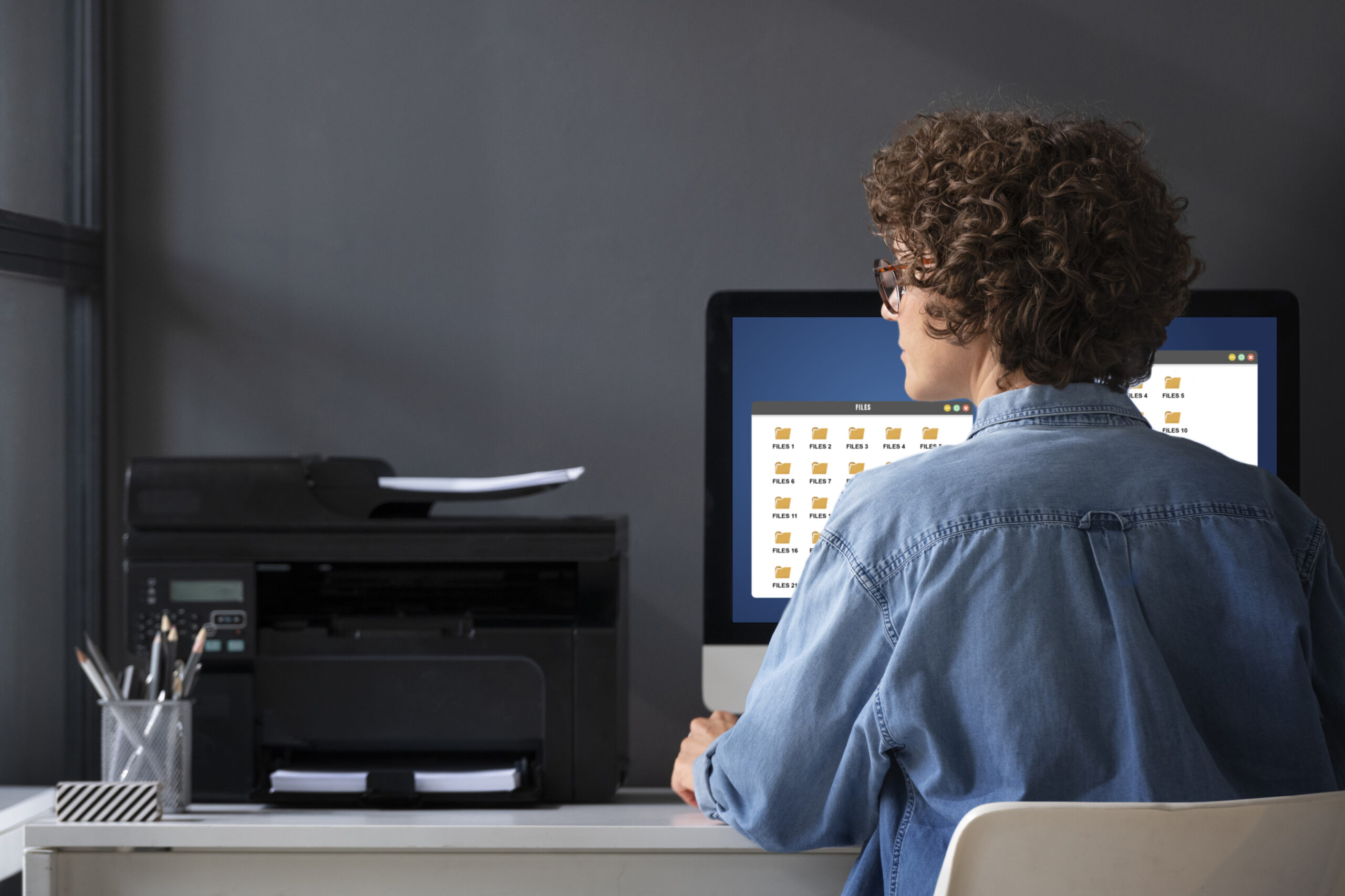
Installing a new printer can feel daunting, but with a structured approach you can move from unboxing to your first crisp page without drama. This article, written in UK English and fully brand-neutral, walks you through every stage: unpacking, power and cable checks, Windows and macOS installation, and that satisfying first print. By the end, you’ll not only have a functioning device but also the confidence to maintain smooth performance for years ahead.
Step 1 — Unbox and prepare the printer
Begin by placing the carton on a stable, flat surface near a wall socket and your intended workspace. Cut the seals carefully and lift accessories first: manuals, starter cartridges, cables. With help if needed, lift the printer itself and place it on a sturdy desk. Remove all tapes, plastics, and transit locks. Many models include orange safety clips or blue strips inside the scanner lid and paper tray; missing these is the number one cause of jams in brand-new printers.
- Check contents: Printer, starter cartridges/toner, power cable, USB cable (sometimes not included), quick-start guide.
- Inspect condition: Look for cracks or loose parts; report defects immediately.
- Choose location wisely: Avoid direct sunlight, radiators, or damp corners. Ensure stable Wi-Fi signal if wireless is planned.

Step 2 — Connect power and basic cables
Plug the power cable directly into a wall outlet, avoiding cheap multi-plug strips that can cause surges. Power the printer on and allow it to initialise — you may hear rollers turning and see a “warming up” message. If your model offers USB or Ethernet, keep these cables nearby but connect them only when the software or operating system instructs. Early cable connection can confuse detection during installation.
Step 3 — Insert cartridges or toner
Install the supplied cartridges or toner carefully. For inkjets, shake each cartridge gently and remove protective strips. For lasers, rock the toner side-to-side to distribute powder evenly before insertion. Seat firmly until you hear a click. Close covers properly to prevent “door open” or “cartridge missing” messages later.
| Type | Action | Common mistake |
|---|---|---|
| Inkjet cartridge | Remove tape; insert until it clicks | Leaving air tape on = no flow |
| Laser toner | Rock gently; insert firmly | Skipping rock step = streaks early |
Step 4 — Load paper correctly
Use a fresh, sealed ream of 80–100 gsm office paper. Fan lightly, tap edges square, and load below the tray fill line. Adjust side guides snugly without bowing the stack. Close the tray fully. Improperly loaded paper is a prime cause of misfeeds on first use.
Step 5 — Choose your connection method
You now decide how the printer will communicate with your computer:
- USB: Reliable, one-to-one connection. Best for single desktops.
- Wi-Fi: Flexible; allows laptops, phones, and tablets to connect. Works best on 2.4 GHz networks.
- Ethernet: Stable for office use; assign a static IP if possible.
Do not connect yet — follow OS-specific prompts to ensure smooth detection.
Step 6 — Install the printer on Windows
Windows 10 and 11 streamline installation but small missteps can cause “Driver unavailable” errors. Follow these steps:
- Open Settings → Bluetooth & devices → Printers & scanners.
- Click Add device. If your printer appears, select it.
- If not listed, choose Add manually → Add by TCP/IP address, and enter the printer’s IP (from the control panel).
- If using USB, connect the cable only when prompted.
- Allow Windows to fetch drivers automatically. If unavailable, download the basic driver package from the manufacturer’s site.
| Connection | Steps | Notes |
|---|---|---|
| USB | Plug in when prompted → Windows installs automatically | Most reliable; no network needed |
| Wi-Fi | Ensure printer is on same SSID → Add by “Wi-Fi Direct” or IP | Prefer 2.4 GHz band |
| Ethernet | Connect cable → Add by IP | Stable; assign static IP in router |
Continue to Part 2 for macOS installation, calibration, first print test, troubleshooting, and FAQs.
Step 7 — Install the printer on macOS
macOS generally prefers AirPrint or IPP drivers. Installing is straightforward but worth doing carefully:
- Click Apple menu → System Settings → Printers & Scanners.
- Click the + button to add a new printer.
- If the printer appears automatically under “Nearby Printers,” select it and choose AirPrint as the driver if available.
- If not visible, click IP at the top, and enter the printer’s IP address (find on the printer’s panel).
- Select Secure AirPrint or Generic PostScript if unsure which driver to pick. Avoid installing bloated full packages unless features demand it.
Step 8 — Print your first test page
With the printer installed on Windows or macOS, it’s time to print a test page:
- Windows: Settings → Printers & scanners → Printer → Manage → Print a test page.
- macOS: System Settings → Printers & Scanners → Printer → Options & Supplies → Utility → Print test page.
This confirms communication, paper feed, and cartridge installation. Check for streaks, misalignment, or faded areas. If problems appear, run the cleaning and alignment utilities from the driver before printing more.
Step 9 — Align, clean, and calibrate
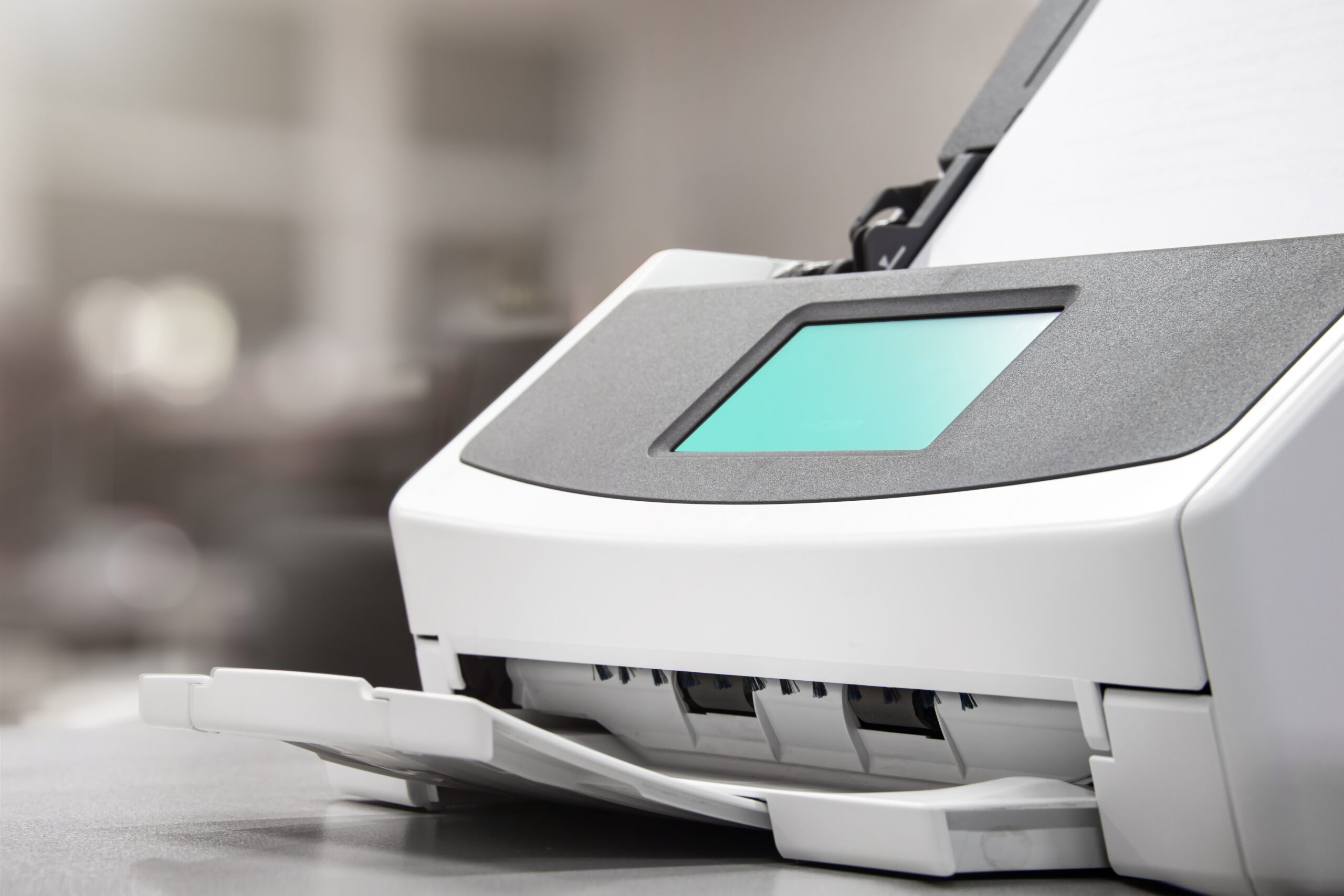
Before committing to long runs, perform alignment and cleaning routines:
- Nozzle check (inkjet): Print a pattern to confirm all colours flow.
- Head alignment: Adjust droplet placement to prevent banding.
- Fuser clean (laser): Run maintenance mode to prevent toner streaks.
- Density adjust: Increase if prints appear pale; decrease if smudging.
Step 10 — Preventive care for a new device
New devices benefit from small, regular care that keeps them running smoothly:
- Weekly: Print a single page to keep ink flowing and rollers active.
- Monthly: Dust exterior and wipe paper tray with a dry cloth.
- Quarterly: Firmware update via the printer panel or web interface.
- Always: Store paper in a dry cupboard; keep cartridges sealed until needed.

Troubleshooting common first-installation errors
| Symptom | Likely cause | Fix |
|---|---|---|
| Printer not found | Wi-Fi mismatch or firewall block | Check SSID; use IP method; disable firewall temporarily |
| Driver unavailable | OS failed to fetch driver | Use AirPrint/IPP (macOS) or manual driver download (Windows) |
| Paper jam on first load | Tapes or guides mis-set | Recheck tray, remove any protective strips |
| Pale output | Density set to draft or toner save | Raise quality; calibrate |
| Colour misaligned | Heads not aligned | Run alignment utility |
FAQs
Do I need the manufacturer’s CD to install?
No. Both Windows and macOS install most printers automatically using built-in or downloaded drivers. Avoid CDs as they often contain outdated bloatware.
Should I install full software suites?
Not unless you need advanced scanning or fax utilities. Basic drivers via Windows Update or AirPrint cover most needs safely.
Which is better: USB or Wi-Fi connection?
USB is the most reliable if you use one computer. Wi-Fi is flexible for multiple devices. Ethernet is best for offices needing stability.
Why does my printer go offline after sleep?
Some models drop connection when idle. Assign a static IP (network) or disable deep sleep mode in settings to maintain stability.
How do I print from a phone?
Most modern printers support AirPrint (iOS) or the built-in Android Print Service. Ensure the phone is on the same Wi-Fi network as the printer.

Guide Axis provides brand-neutral educational content only. No remote access, repairs, or warranty services.