

Scanner Not Detected? Step-by-Step Fix for Windows & macOS
Scanner Not Detected? Step-by-Step Fix for Windows & macOS
Clear, brand-neutral guides you can follow step by step. Browse all topics below — Windows & macOS friendly.
This hub collects every guide we've published, organized by what you're actually trying to do rather than alphabetically or by date. Each guide follows the same format — a plain-English explanation of what's actually happening, numbered steps for both Windows and macOS where they differ, and a way to confirm the fix worked before you consider it done. Jump straight to a category below, or scroll through everything.
Before a printer can do anything else, it has to actually be found and trusted by your computer or phone. This is where the majority of first-time frustration happens — a printer that seemed fine in the box suddenly shows as offline, unavailable, or invisible during setup, and it's rarely because anything is physically broken.
Most connectivity problems trace back to one of three things: a mismatch between the Wi-Fi band your printer and computer are each using (2.4GHz vs 5GHz), a stale network address the printer picked up before a router restart, or a guest network quietly isolating two devices that are supposed to talk to each other. Reconnecting after changing your Wi-Fi or router is its own common scenario, since a printer that worked perfectly on the old network doesn't automatically know the new one exists.
The guides below walk through diagnosing which of these is actually happening in your case, fixing it with the safest and most reversible step first, and — for shared or office setups — getting wireless and cloud printing working reliably across every device on the network, not just the one it was originally set up on.
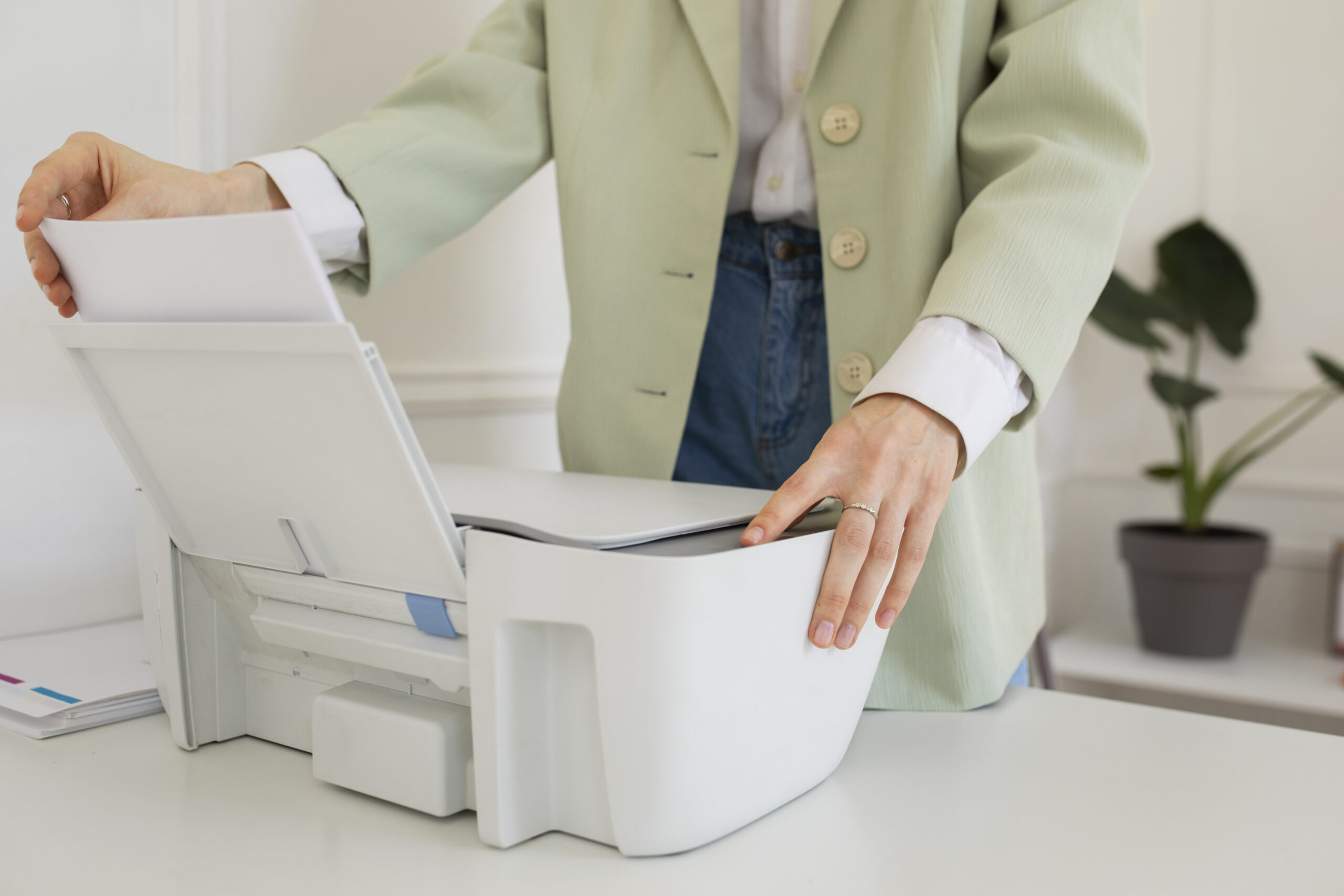
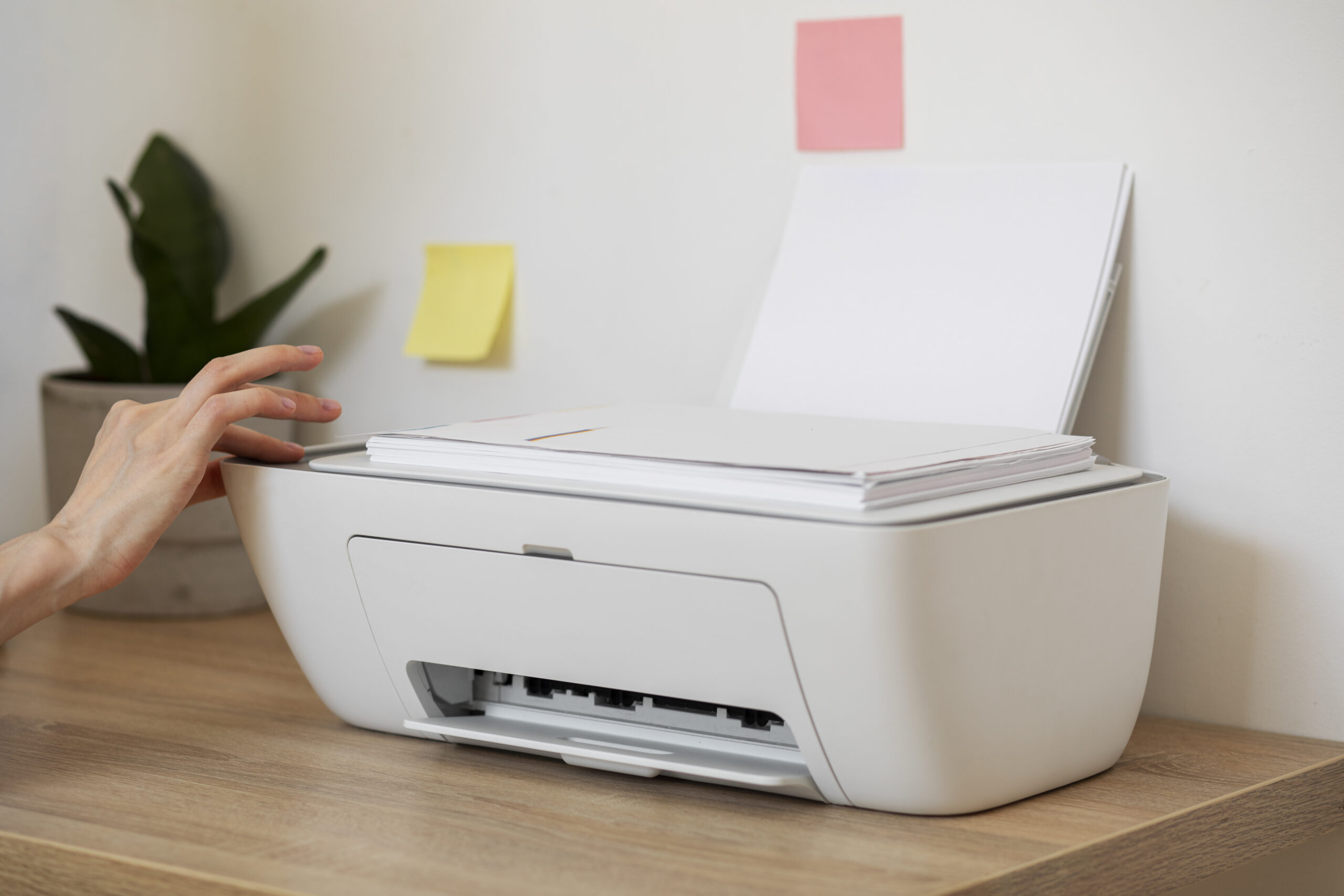


Once a printer is properly connected, the next place things go wrong is in what actually lands on the page. Smudging, streaks, faded text, and colours that don't match what's on screen are some of the most common complaints — and nearly always a cleaning, calibration, or settings issue rather than a sign the printer needs replacing.
Inkjet and laser printers fail differently here, which is why it matters to know which type you have before troubleshooting. A clogged nozzle on an inkjet printer produces different symptoms — usually faded patches or thin white lines — than a scratched drum on a laser printer, which tends to leave a mark repeating at a regular interval down the page. Driver mismatches and the wrong media preset selected for the paper you're actually using are the other frequent culprits, especially after a driver update changes a default setting without you noticing.
These guides cover the standard cleaning and calibration routines for both printer types, how to read what a specific quality problem is telling you about the likely cause, and — for anyone printing photos at home — getting genuinely professional-looking colour and sharpness out of a standard consumer printer.

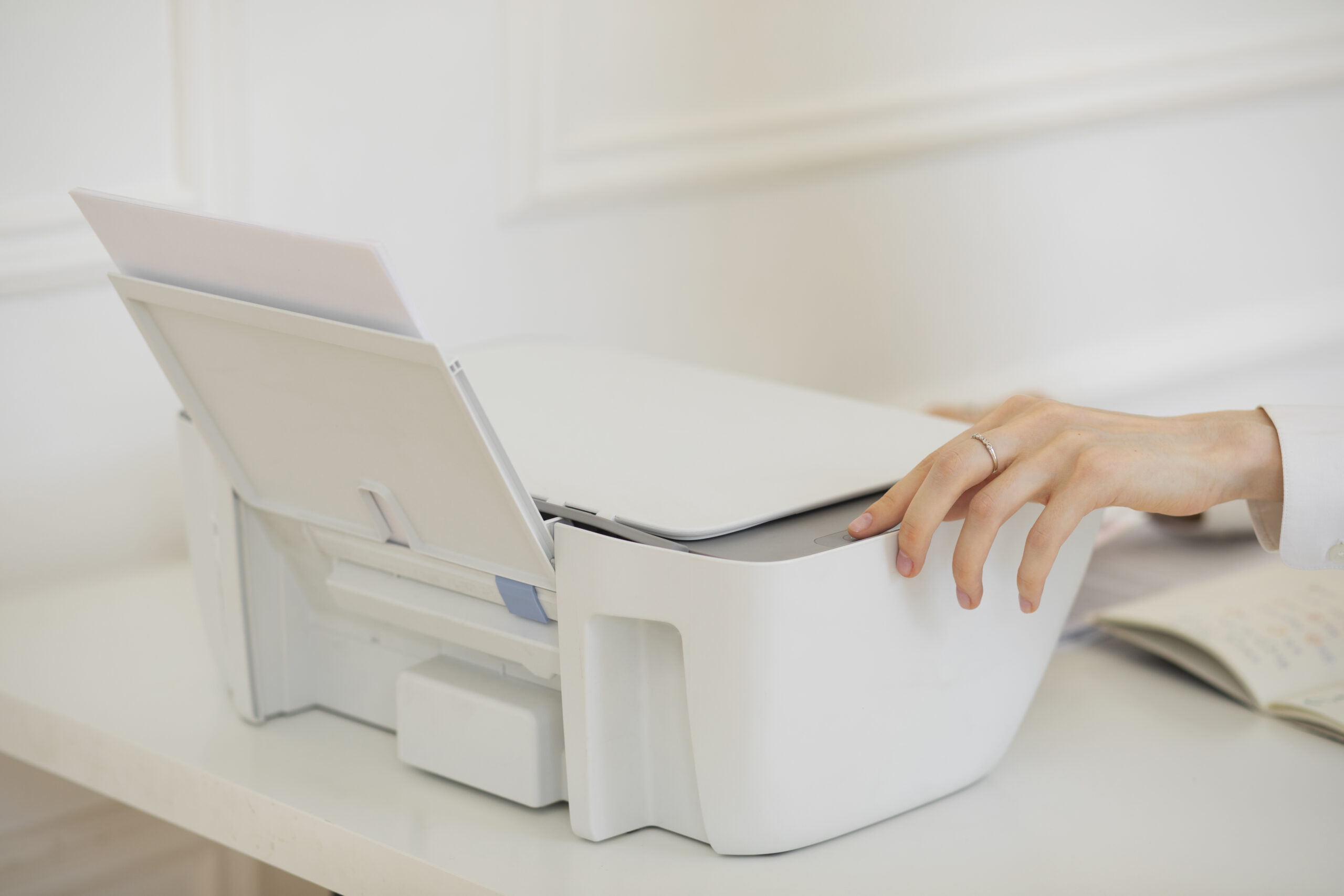

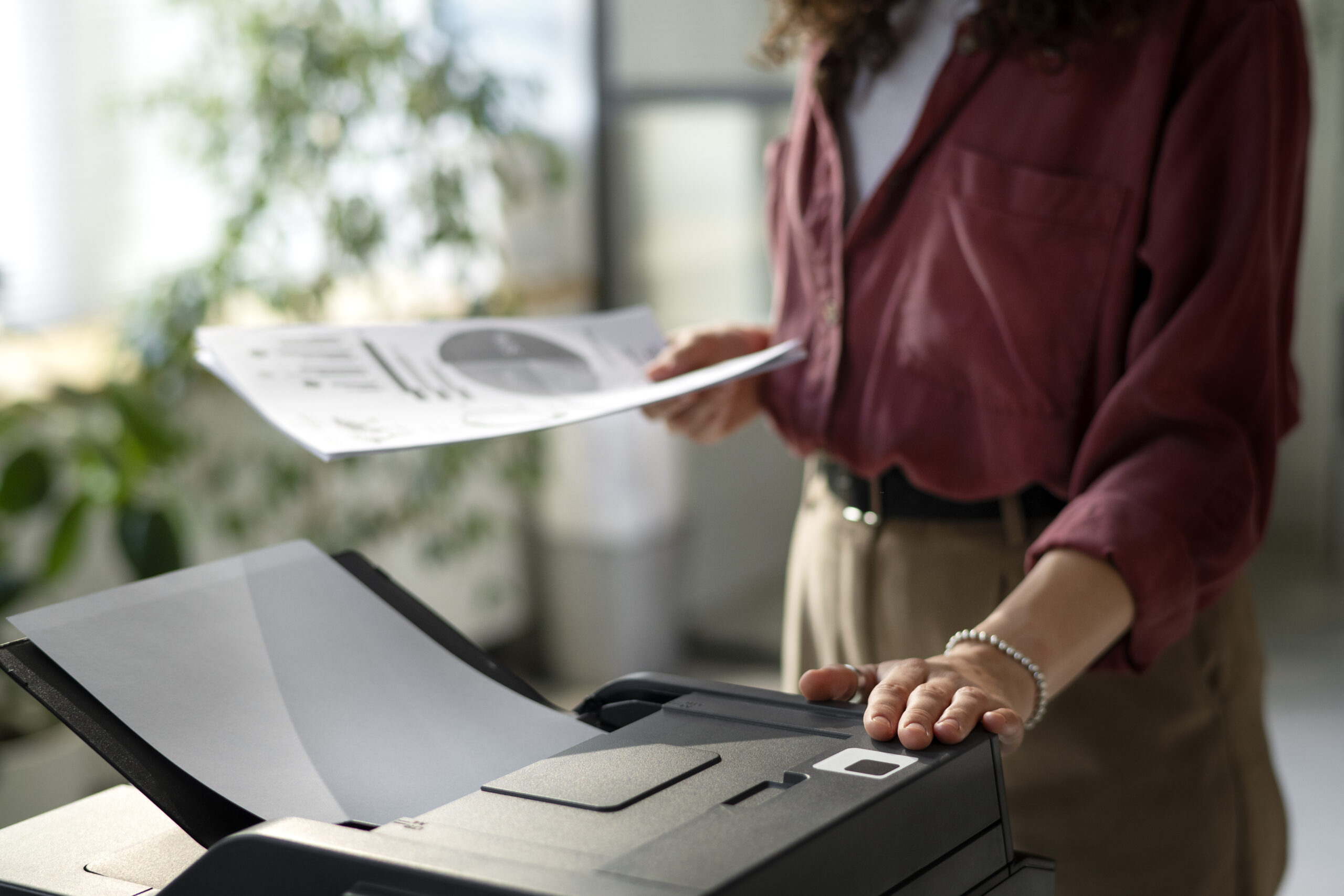
Paper jams are one of the few printer problems that are genuinely physical rather than a settings or connection issue — but they're also one of the most preventable, once you understand what causes them. Humidity, incorrect loading, and using the wrong media preset for the paper actually in the tray account for the overwhelming majority of repeat jams, far more often than a worn-out mechanical part.
Beyond jams, this category covers the everyday decisions that affect both cost and results: which paper weight and finish actually suits a given job, how duplex (two-sided) printing can meaningfully cut paper use over time, and simple storage habits that stop sheets from curling or absorbing moisture before you even load them. None of this requires special equipment — mostly it's about matching the paper to the setting, and the setting to the paper.
If your printer keeps jamming at the same point every time, or curled and misfed paper is a recurring annoyance, the guides here start with the loading and storage basics before moving into diagnosing a genuine mechanical cause.

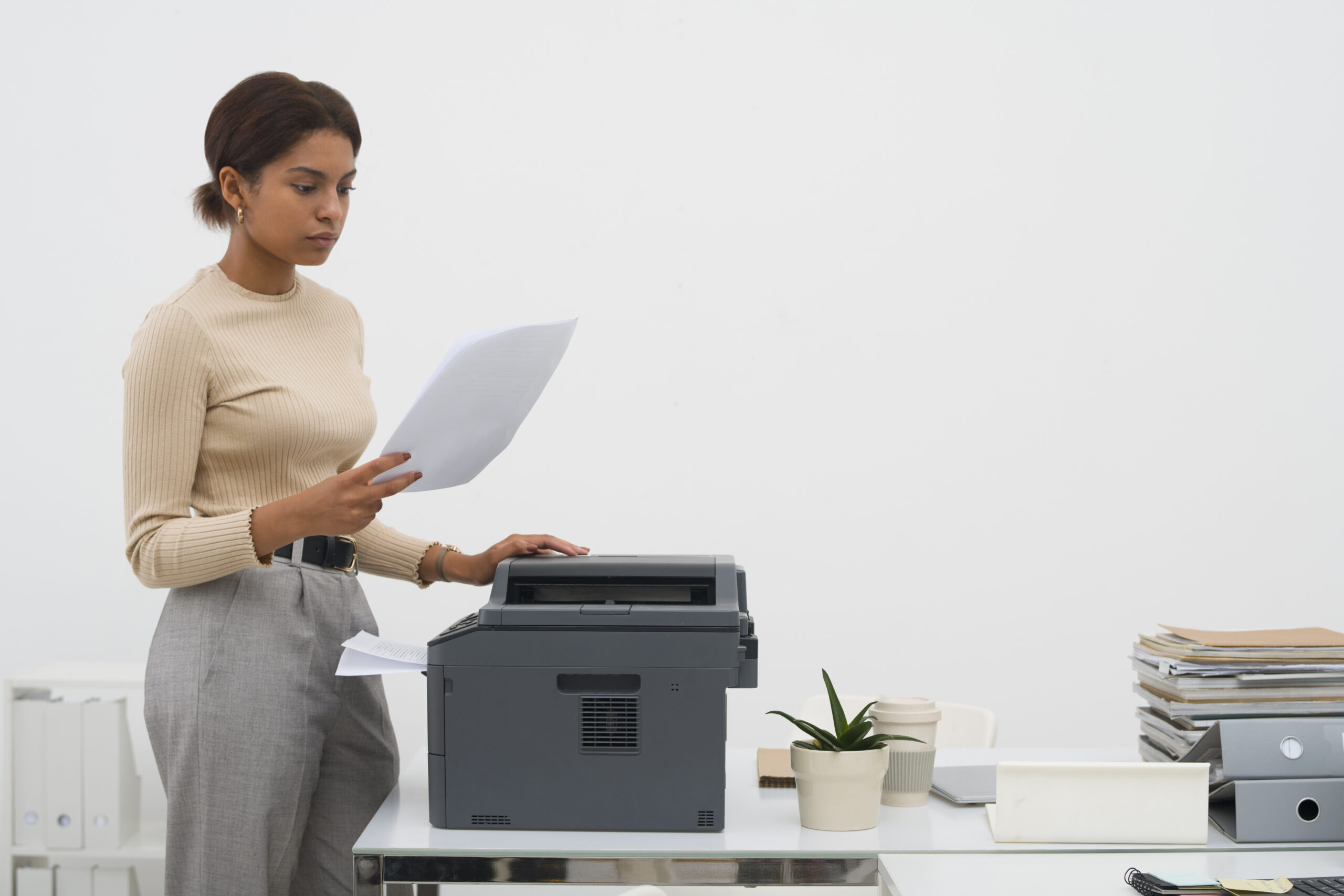
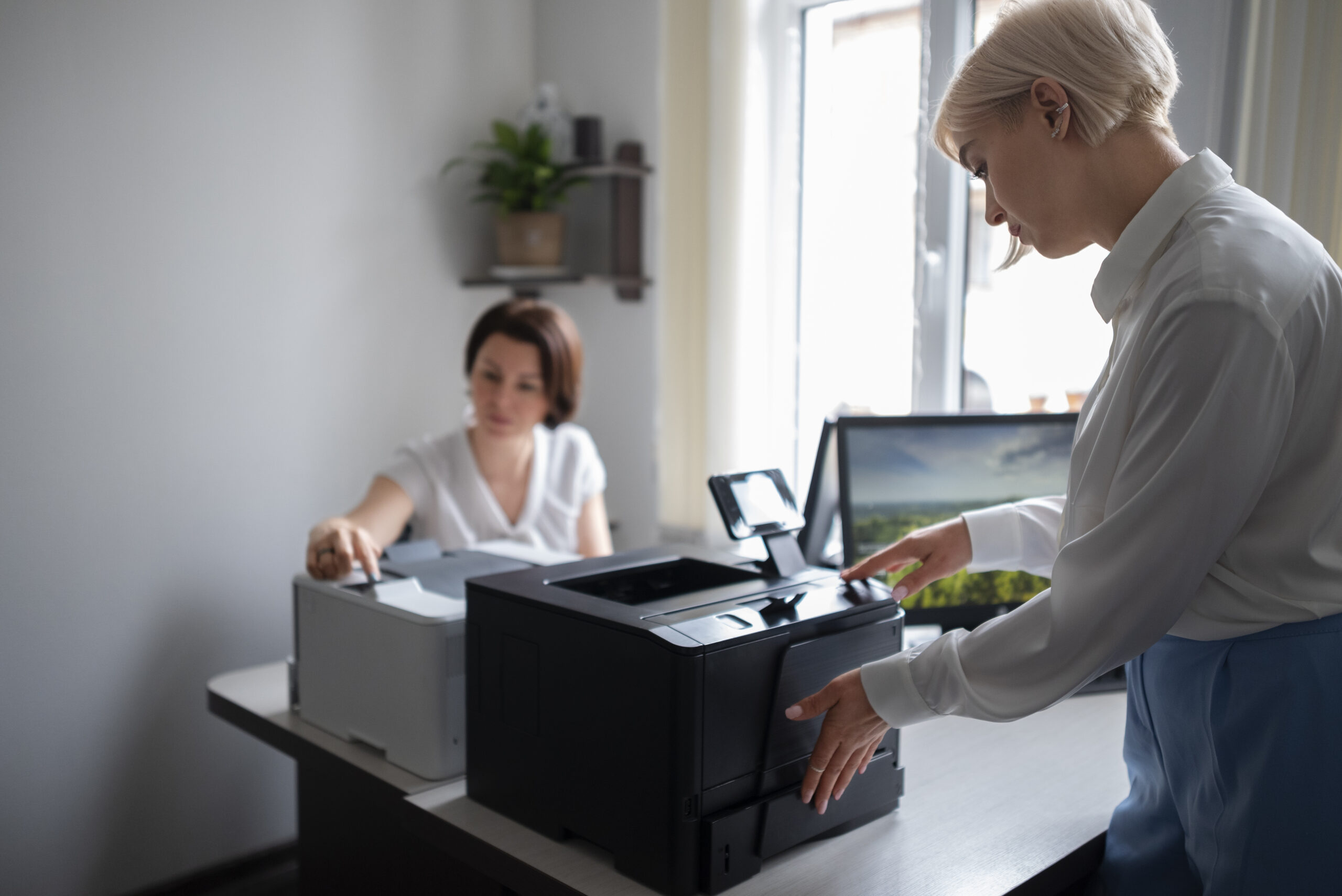
The first hour with a new printer sets the tone for everything after it. Installing the driver before connecting the printer, rather than the other way round, avoids most of the discovery and recognition problems people run into during initial setup — a small ordering detail that manufacturer instructions don't always make clear.
This category also covers printing from the devices people actually use day to day, which increasingly means laptops running either Windows or macOS, and phones or tablets on iOS or Android — each with a slightly different printing workflow. A printer that's perfectly set up for one computer in the house doesn't automatically work the same way from a different laptop or a visitor's phone, which is a separate step worth understanding rather than troubleshooting from scratch each time it comes up.
And once a printer's been in use for a while, a stuck print queue is one of the most common reasons it suddenly seems to stop working — usually solved in under a minute once you know where to look, covered in the guides below alongside the initial setup content.





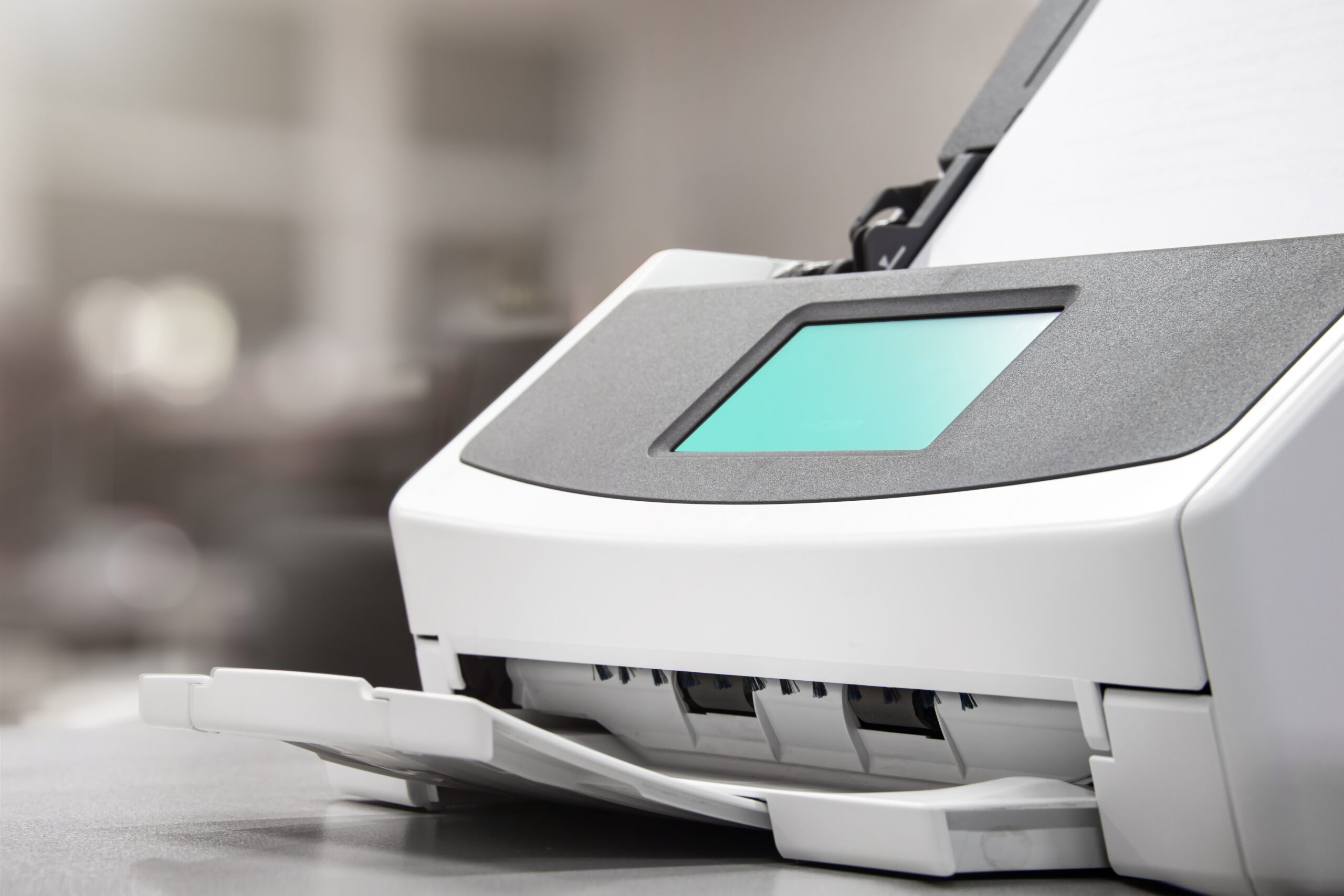
Scanning problems tend to be less about the scanner itself and more about the destination — a scan that completes successfully but ends up nowhere useful is a different problem from a scanner that won't respond at all. Scan-to-email failures are usually an outdated mail server setting stored on the printer, not an issue with your actual email account, while scan-to-computer problems often come down to a destination folder that needs re-selecting after a system update changed a file path.
Combining multiple pages into a single, properly ordered PDF is its own common request, and it's a setting in the scanning software rather than anything the printer itself controls. The guide below covers the standard scan-to-PDF and scan-to-email workflow end to end, along with the fixes for when either one stops behaving the way it used to.
Beyond fixing problems, there's real value in understanding how to get more out of a printer you already own — and in choosing the right kind of printer in the first place. Ink and toner work on fundamentally different principles, which is why they suit different printing habits: ink tends to suit lower-volume, colour-heavy printing, while toner is usually more economical for high-volume text documents, and knowing which category your usage falls into avoids paying for the wrong strengths.
Simple setting changes account for a surprising amount of ongoing cost — draft mode for internal documents, duplex printing to halve paper use, and eco or power-saving modes that reduce energy draw without meaningfully affecting output quality for everyday jobs. None of these require new hardware, just knowing where the settings live and when it's worth switching them on.
Basic physical care — keeping dust away from moving parts, cleaning print heads on a reasonable schedule, and storing the printer somewhere with stable humidity — extends how long a printer keeps performing well before quality problems start creeping in. The guides in this category cover both the cost-saving settings and the maintenance habits that keep a printer running well for years rather than months.





GuideAxis provides independent, brand-neutral educational content. We are not an authorised service centre, do not offer repairs or remote access, and have no manufacturer affiliation.