Pick A Printer Task To Diagnose and Solve
Built-in Windows/macOS steps with a short proof at the end. Independent & brand-neutral — no repairs, no remote access, no phone support.
Click for Chat Assistance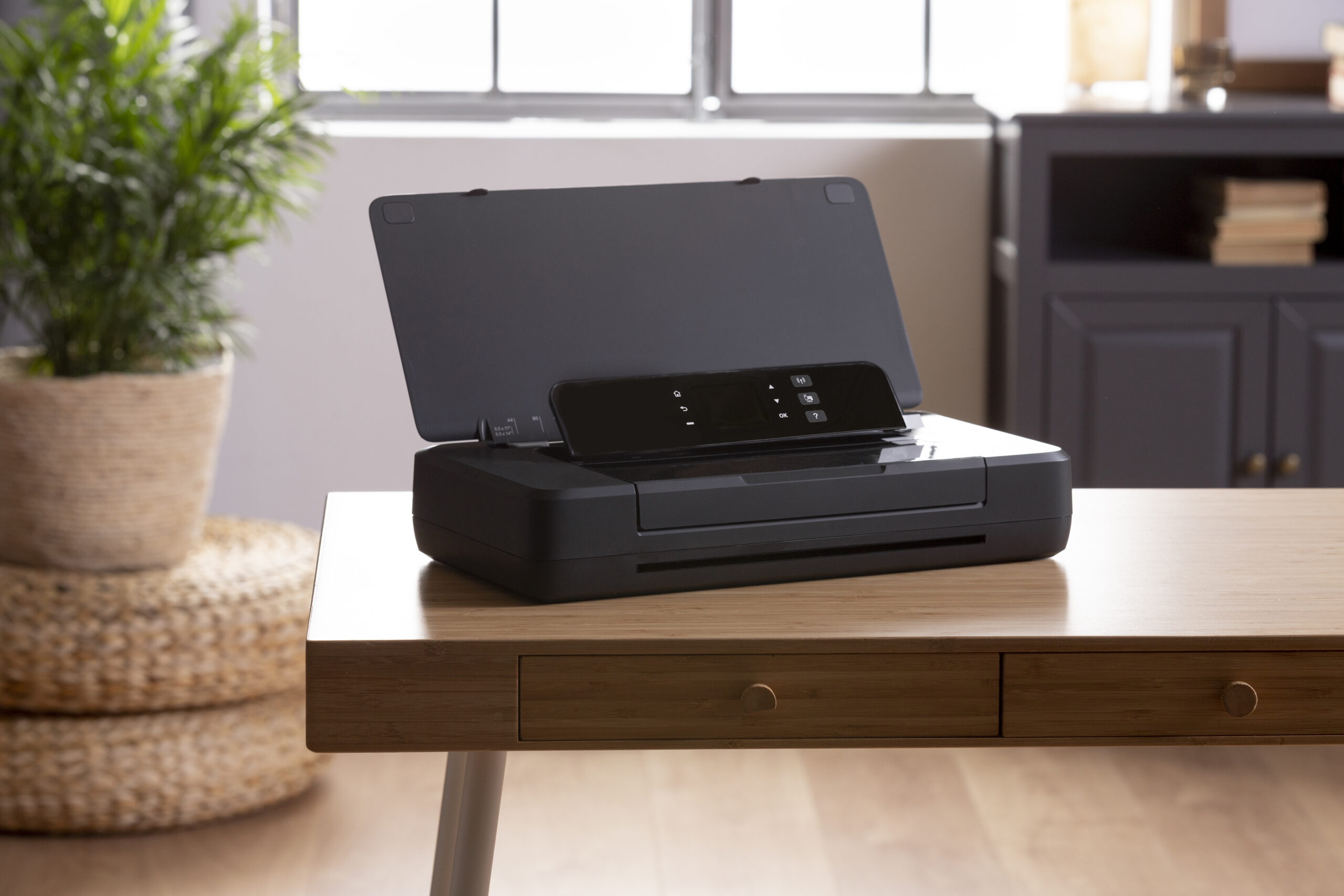
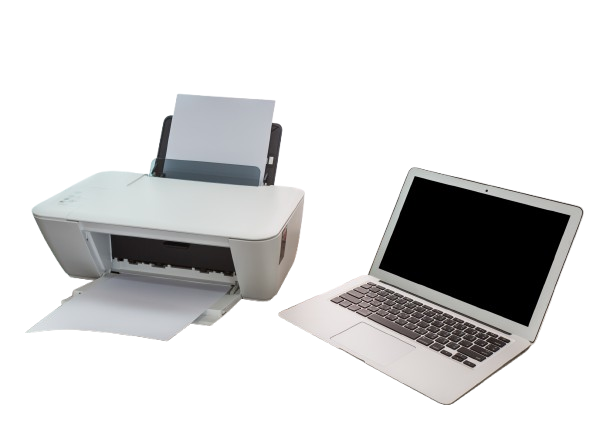
Connect to Wi-Fi (wireless setup)
How to know this is your issue
- Wireless light is blinking or shows as “not connected” on the printer’s panel.
- Your laptop or phone cannot see the printer in the list of Wi-Fi or AirPrint printers.
- You changed router, broadband, Wi-Fi password or moved the printer to another room.
- Printing works over USB, but not when you try to print over Wi-Fi.
What usually causes this
- Printer is still trying to join an old Wi-Fi network name, guest network or wrong band.
- Router is set to 5 GHz only or uses security modes that older printers struggle with.
- WPS button was pressed in the wrong order or timed out during the connection attempt.
- Printer was reset and Wi-Fi setup was never completed again after the reset.
“Printer Offline” / not detected
How to know this is your issue
- Windows or macOS shows Printer Offline, Not responding or similar message.
- Jobs stay in the queue for a long time and nothing reaches the printer.
- The device is switched on and connected, but your computer says it cannot communicate with it.
- Restarting everything only fixes the problem for a short time or not at all.
What usually causes this
- Printer’s IP address changed but the computer is still using the old address.
- Queue was renamed, removed or set to Use Printer Offline inside system settings.
- Firewall or security software is blocking local network printing.
- Printer and laptop are connected to different networks (guest vs main, old router vs new router).
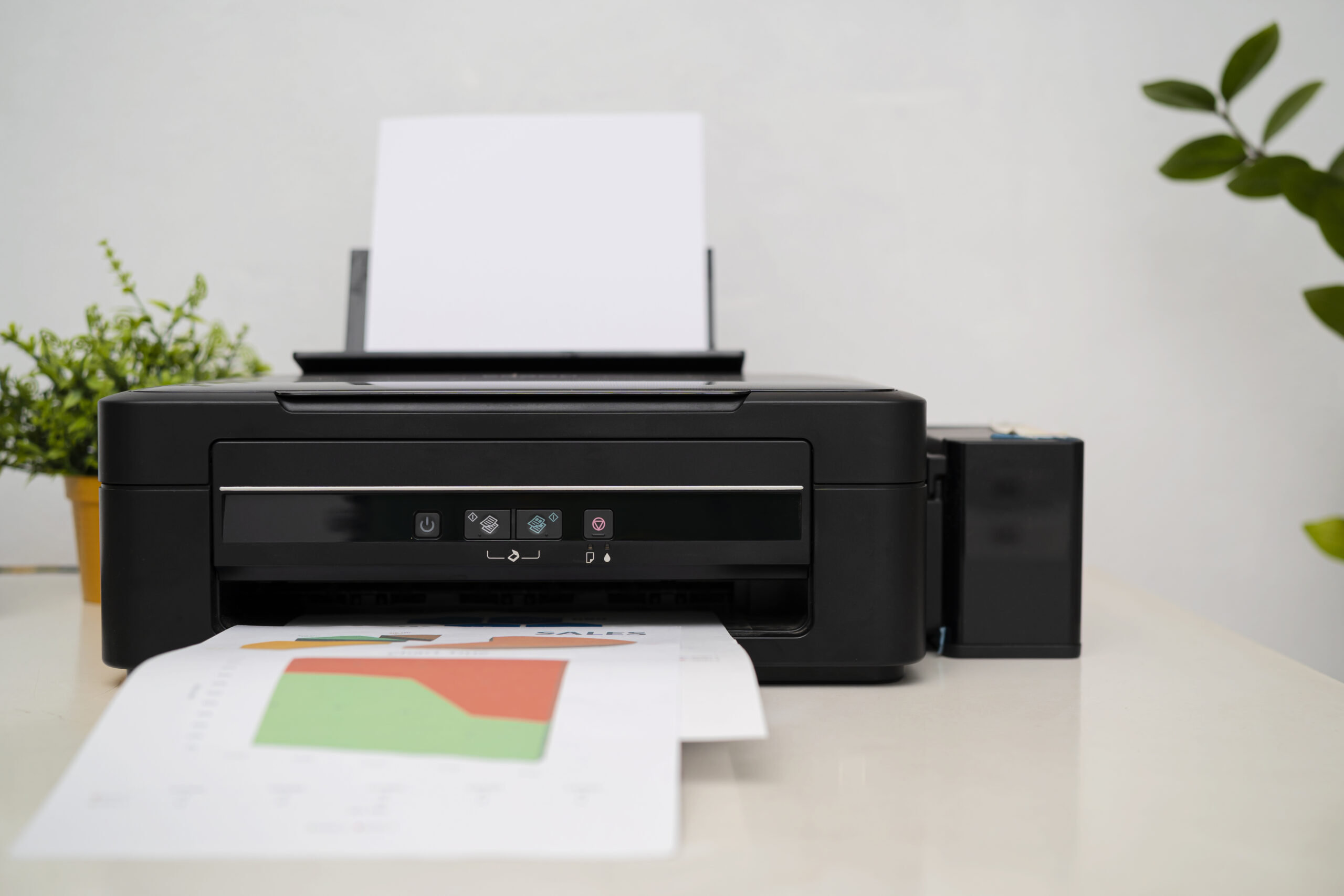
Printer not printing (jobs stuck)
How to know this is your issue
- Documents are stuck on Spooling, Printing or Queued but never leave the list.
- Printer shows Ready yet does not start any job you send.
- One damaged job appears to block everything behind it.
- Hardware test page prints from the device, but not from the computer.
What usually causes this
- A corrupted job stuck at the top of the queue.
- Wrong printer is set as default, so documents are sent to a device that is not connected.
- Windows print spooler service needs a restart or reset.
- Driver mismatch after system updates – the driver is visible but not communicating properly.
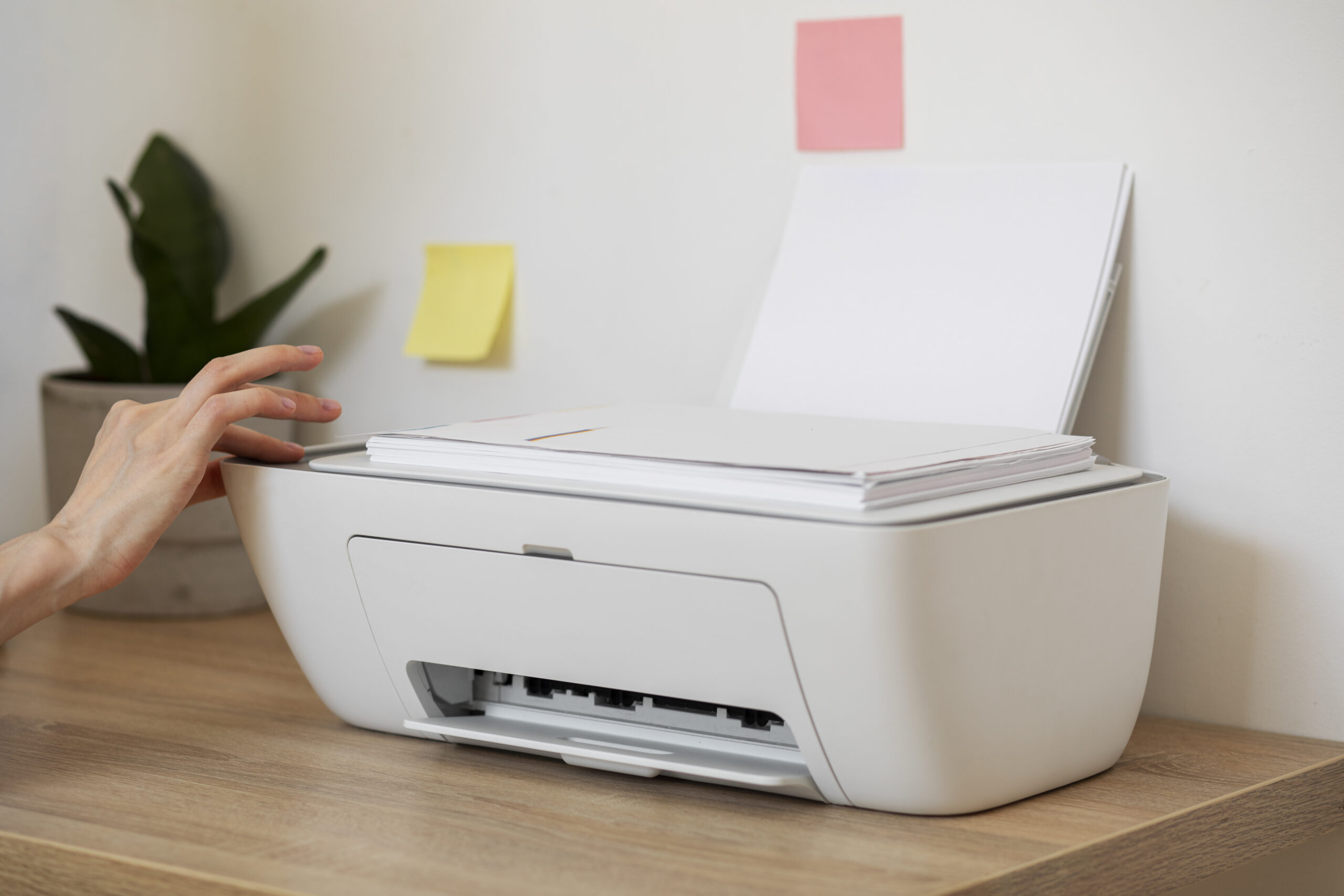
Paper jam / paper feed problems
How to know this is your issue
- Screen or lights show Paper Jam or feed error codes.
- Papers stop halfway, feel stuck or come out crumpled or skewed.
- Printer repeatedly makes feed noises without pulling paper correctly.
- Envelopes, labels or thicker media jam more often than normal paper.
What usually causes this
- Paper loaded too tightly, mixed sizes or damaged sheets in the same tray.
- Damp, curled or dusty paper from long storage or high humidity.
- Small scraps, label backing or foreign objects stuck inside the path.
- Dirty or worn feed rollers that slip instead of gripping the page.
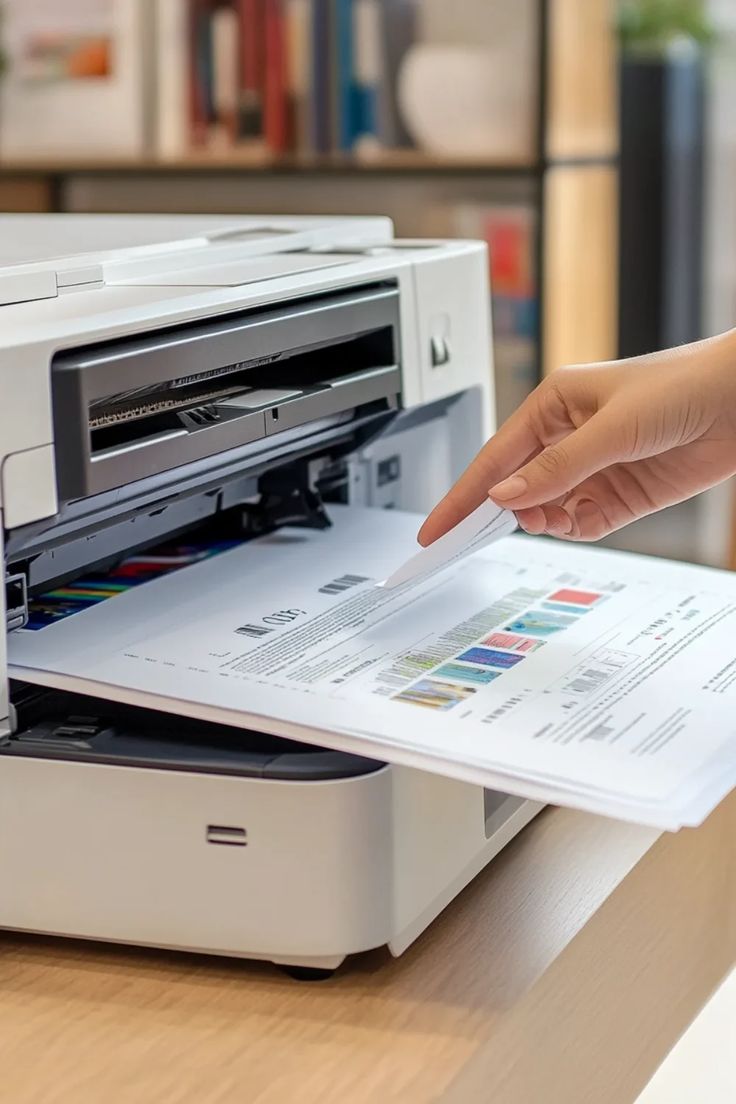
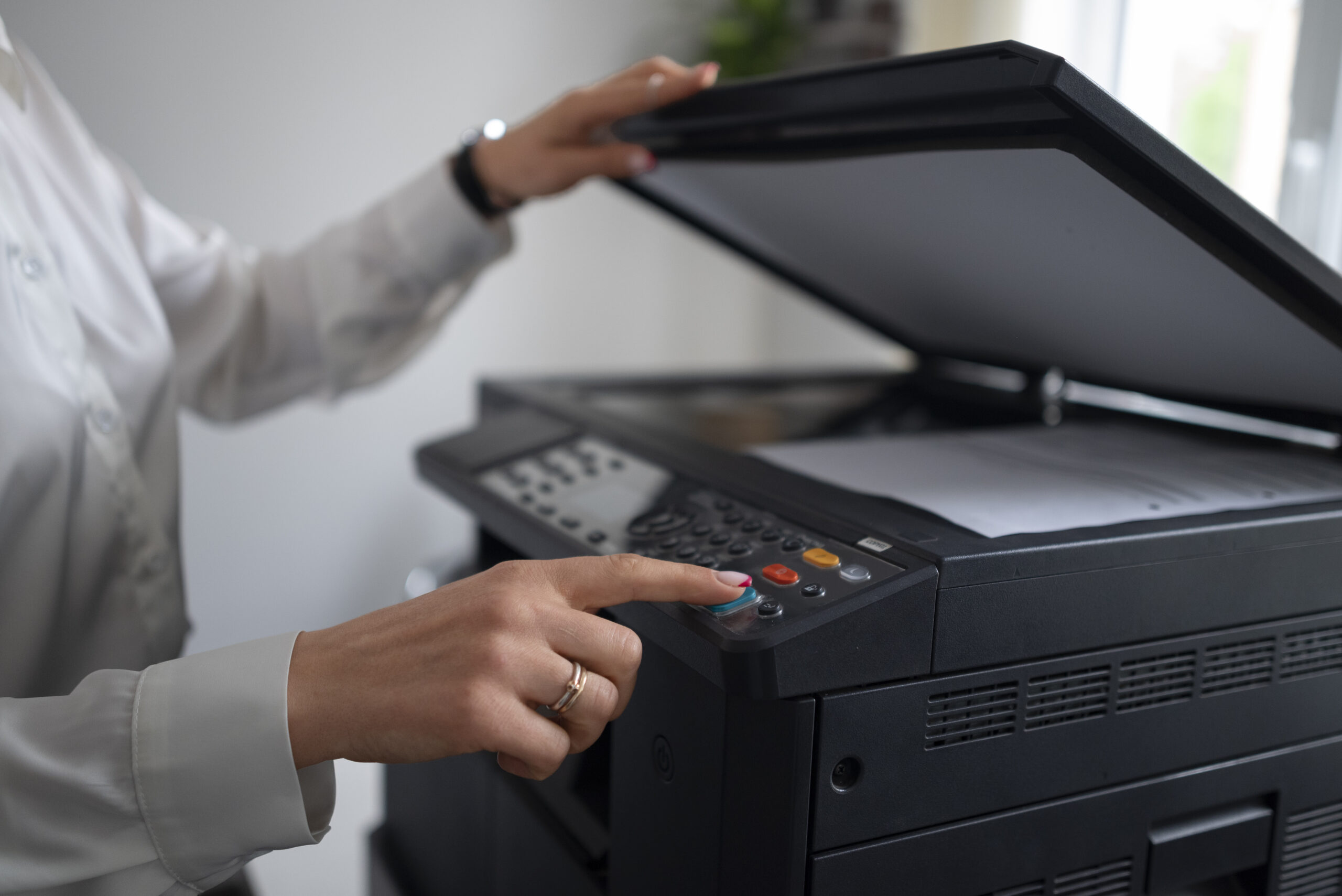
Scanner not working / not scanning
How to know this is your issue
- Scanning app on Windows or macOS cannot find the device, but printing still works.
- You see Scanner communication failed or No scanner detected messages.
- Scan to PDF or email fails, saves blank pages or stops part-way through.
- Document feeder pulls pages, yet no image appears in the scanning software.
What usually causes this
- Only the print function is installed; the scanner device is missing from the system.
- Old scanning utilities from other printers conflict with the current one.
- Network, Wi-Fi or USB path changed but scan settings were never updated.
- Security or privacy settings block the app from using the scanner or saving to folders.
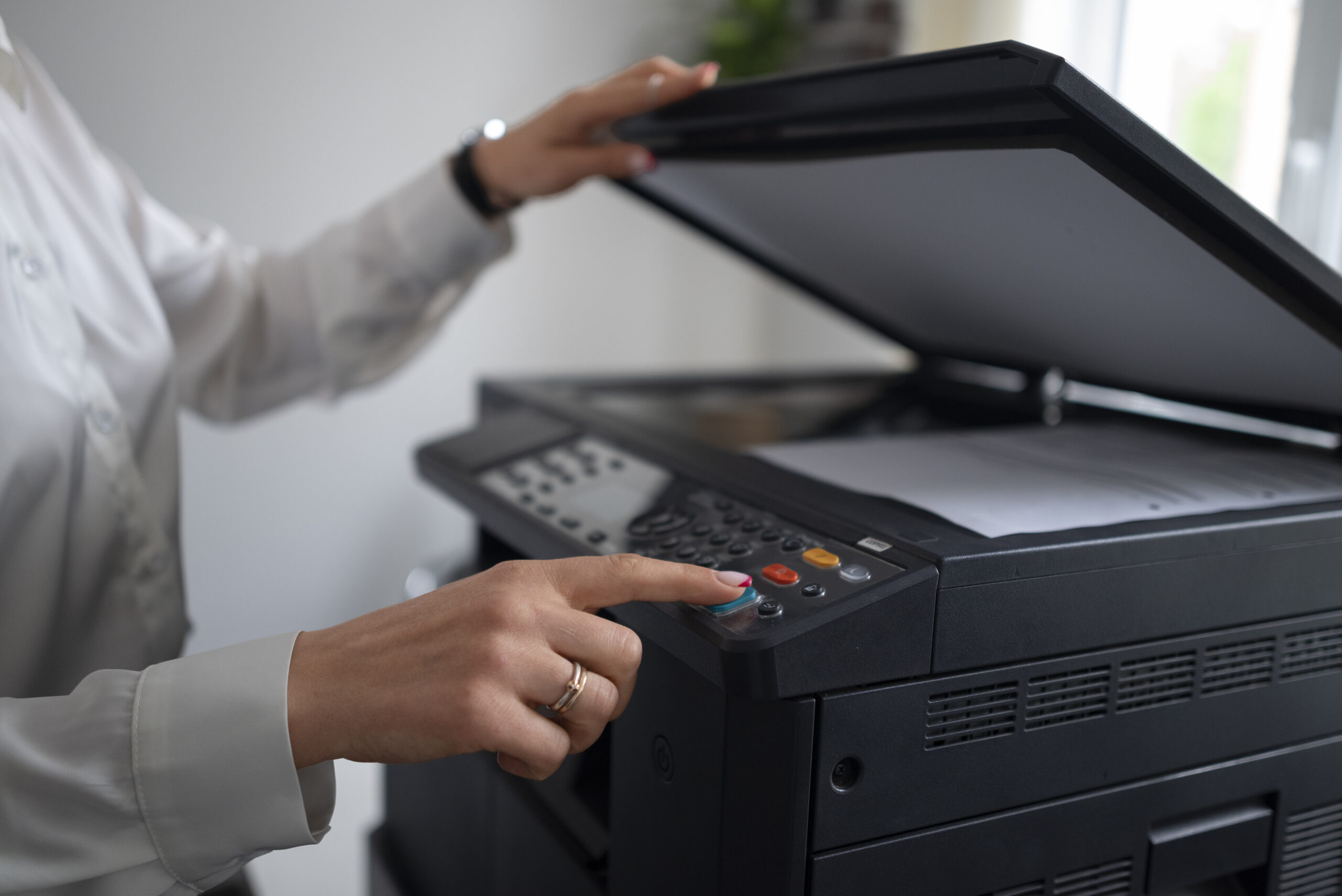
Add printer on Windows or macOS
How to know this is your issue
- Printer does not appear in Printers & Scanners or equivalent settings.
- You see the device on the router or on another computer, but not on this one.
- You reset the printer or changed Wi-Fi and now the computer treats it as new.
- You are adding an existing home or office printer to a new laptop or Mac.
What usually causes this
- Printer has never been added using the built-in Add Printer tools.
- Previous queue was removed or renamed during troubleshooting.
- Computer and printer are on different networks (guest vs main, wired vs wireless).
- Operating system is using a generic driver that only supports limited functions.
USB / Ethernet link (wired setup)
How to know this is your issue
- You expect “plug and print” over USB or Ethernet, but the printer is not detected.
- Device disappears when you move the cable to another USB port or switch sockets.
- Printing works from one PC that shares the printer, but not from other computers.
- You want a more stable wired link after repeated Wi-Fi problems.
What usually causes this
- Loose, damaged or very long USB/Ethernet cables causing drops.
- Using hubs, docks or adapters that cannot reliably power or pass data to the printer.
- Network printers receiving a new IP address while computers still use the old one.
- Shared printer hosted on a PC that is turned off, asleep or misconfigured.
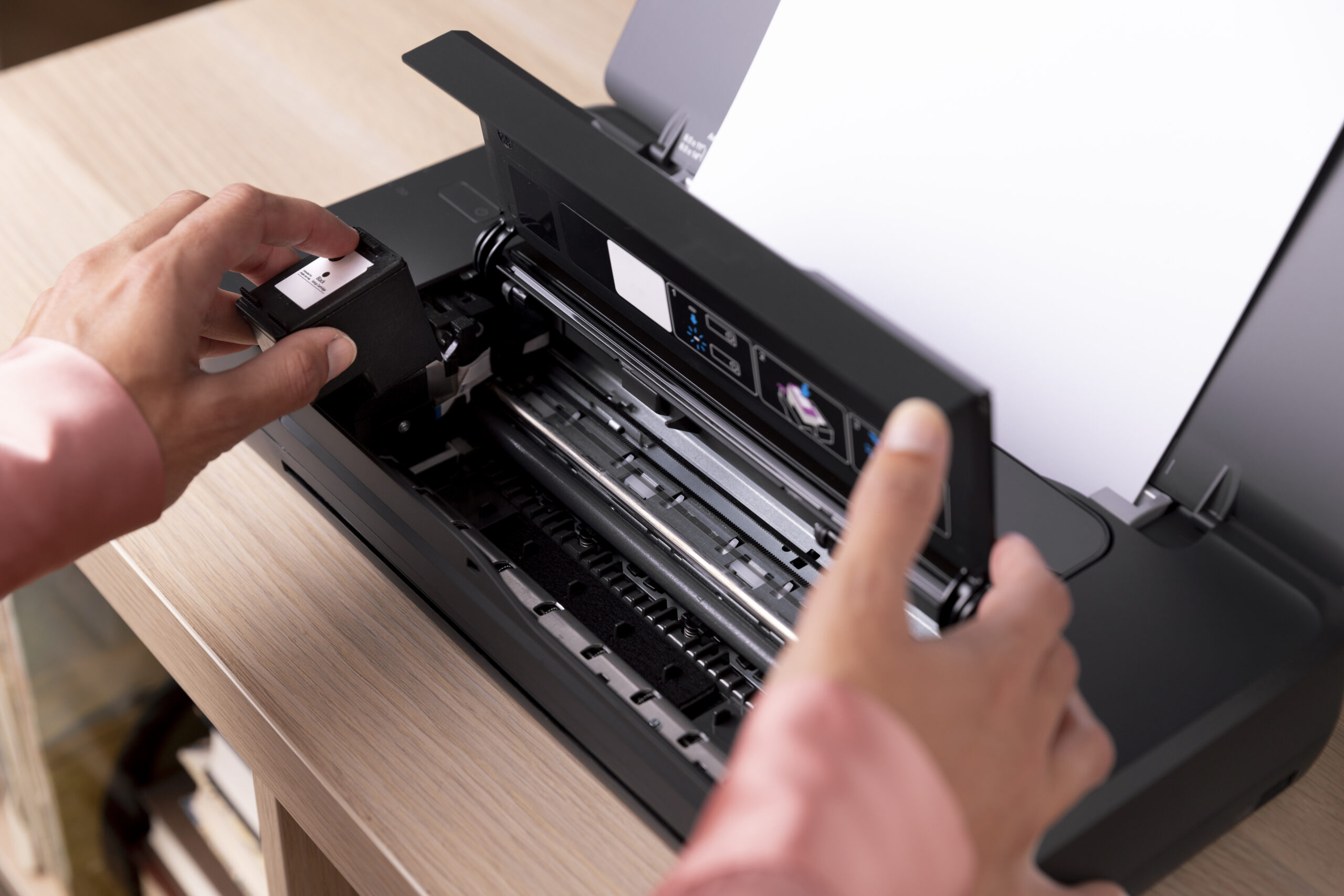
Printer setup guidance for everyday tasks
What these notes help you do
- Use built-in Windows 10/11 and macOS tools to fix common printer and scanner problems.
- Follow structured checklists instead of guessing settings or reinstalling everything.
- Move safely between Wi-Fi, USB and Ethernet without installing extra “optimizer” tools.
- Understand what your printer status lights and messages mean in plain language.
Tasks covered in the guidance
- Connect a printer to Wi-Fi, change routers and update passwords without losing the link.
- Fix “printer offline”, “not responding” and “cannot communicate with printer” messages.
- Clear stuck jobs, reset the print queue and get pages printing again.
- Deal with paper jams and paper feed issues using safe, step-by-step checks.
- Add a printer on Windows or macOS, including shared, USB and network printers.
- Resolve “scanner not detected” and “scan to PDF not working” situations.
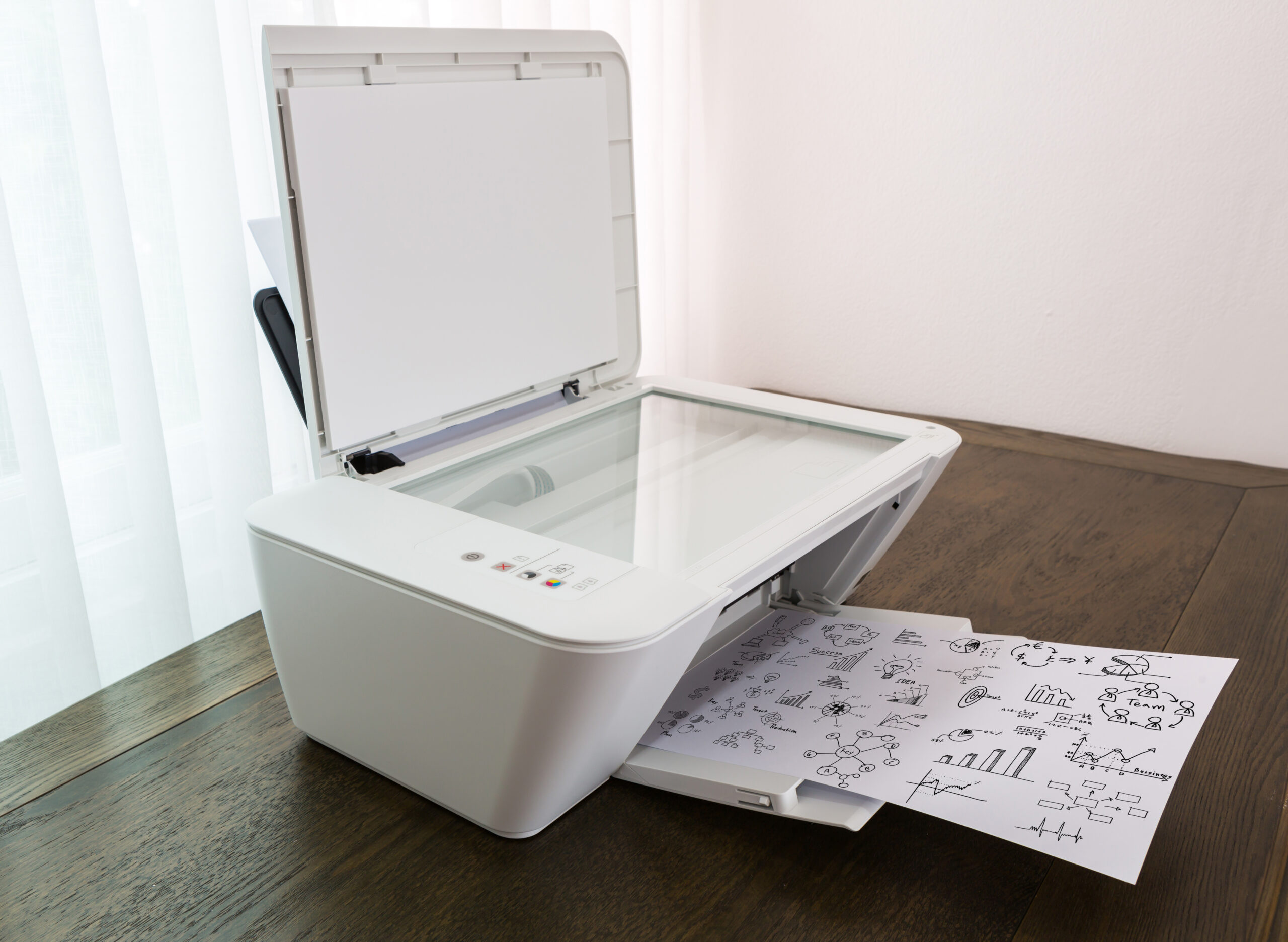
Why this guidance page is safe & useful
How this page stays education-only
- No remote access, no screen-sharing, no control of your computer at any point.
- No driver bundles, “PC cleaners” or third-party download managers.
- Brand-neutral instructions that work with many home and office printers.
- Focus on operating-system menus you already have: Printers & Scanners, Network, Wi-Fi, USB and Ethernet.
What makes the instructions trustworthy
- Clear separation between educational notes and any paid services you may choose later.
- Linked privacy policy, cookie policy, terms, disclaimer and editorial policy in the footer.
- Plain-English explanations so “connect printer to Wi-Fi” or “fix printer offline” does not feel technical.
- Short proof steps at the end of each checklist so you can confirm if the change has worked.
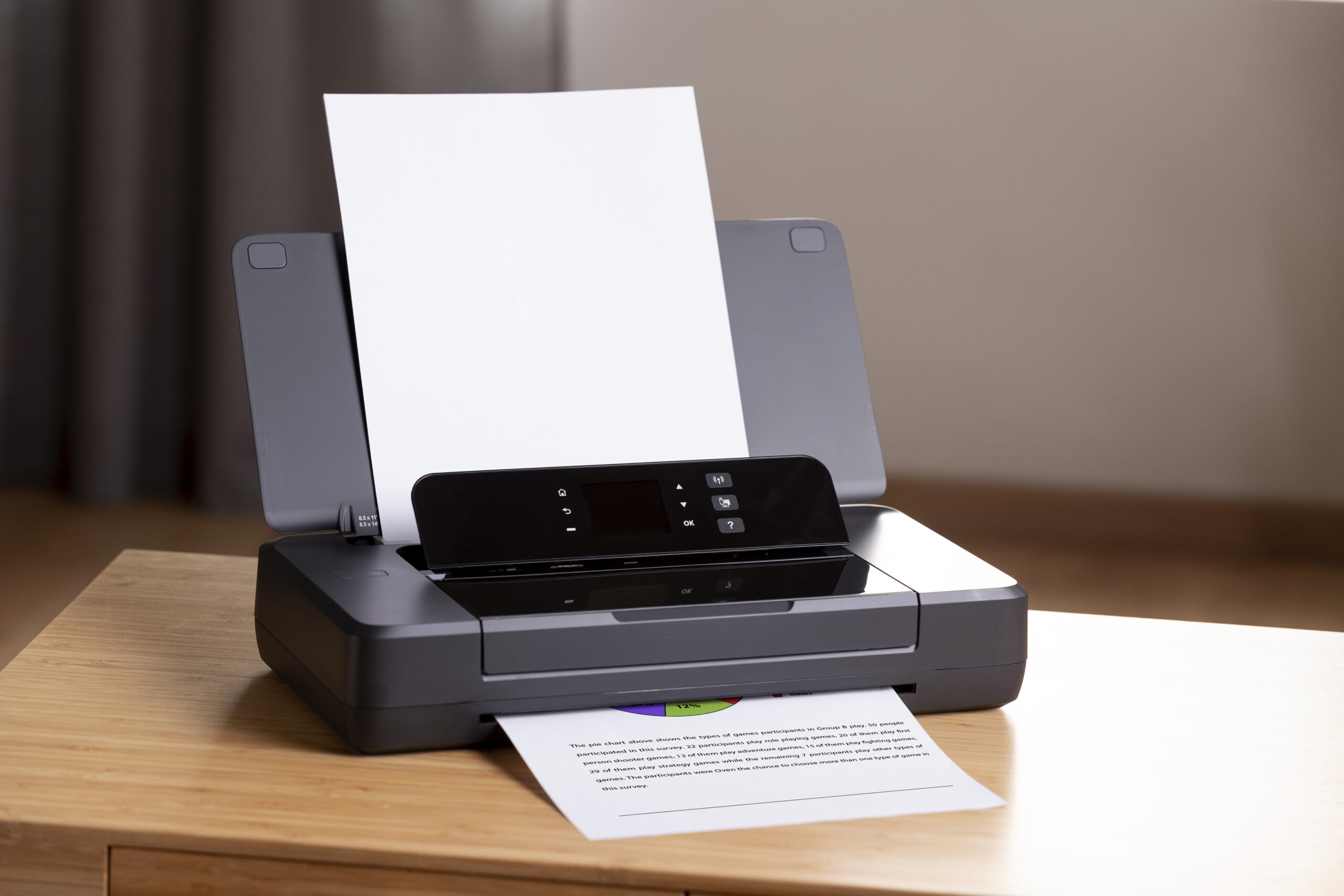
Who this page is for (and typical search questions)
Situations this page is written for
- Searching “how to connect printer to wifi”, “connect printer to new router” or “wireless printer setup”.
- Seeing “printer offline” even though Wi-Fi or USB is connected and the printer is on.
- Printer is connected but not printing; jobs stay stuck in the queue or on “spooling”.
- Needing a simple, safe way to clear a printer paper jam at home or in a small office.
- Looking up “add printer on windows 11”, “add network printer on mac” or “install printer on new laptop”.
- Typing “scanner not detected”, “scan to pdf not working” or “cannot find scanner on network”.
- Wanting wired reliability and searching “usb printer not detected” or “ethernet printer keeps dropping”.